Wednesday, December 19, 2012

Motorola Defy XT557D

This is the phone provided by Republic Wireless.

There are some things I’ve been trying to find out about the phone.

  • This phone is the dual-band phone. What is the difference with the single-band phone? A: here
  • Can I get a feature like Call Filter to “block” certain numbers as Call Filter itself doesn’t seem to work on the RW modified phone. A: Yes, under contacts, Menu -> Options allows you to define if the caller should go directly to phone mail without ringing the phone. I can set up a “spam” contact which all the numbers which are desired to be blocked. Similarly, if the number is set up in Google Voice as spam, they will not be able to leave a message either.
  • The green LED light seems to be flashing all the time. A: Unread messages can do this, so one way is to check messages app for any messages still thought to be unread. But this doesn’t seem to be the reason in my case.
  • Just for keeping track, the charge went from 100% to 15% of minimal use after 2 days (24×2 hours).

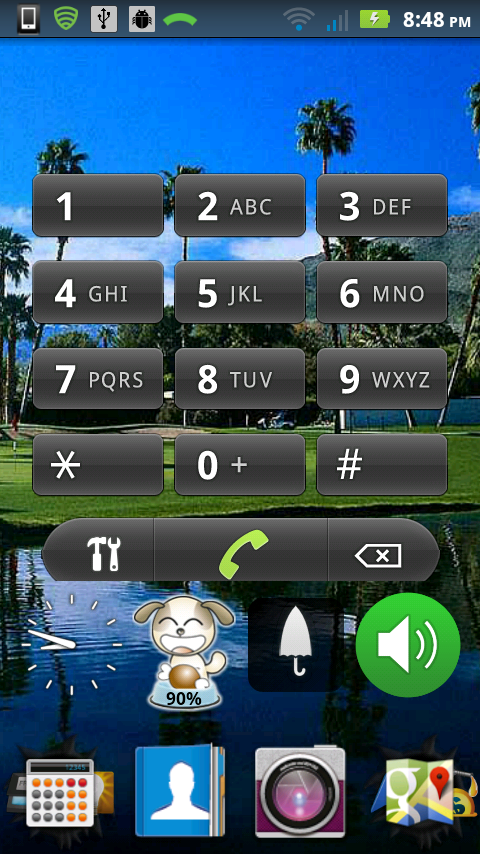
As mentioned previously, this is the smartphone I am setting up for my mom. Here’s what her home screen will look like. Note that there is only one screen for her home screen, so she doesn’t have to worry about navigating anywhere in order to use the phone (ie, use the phone as a phone to call someone).
Android app: Magnifying apps

One of the features people can take advantage of from their smart phones is the zoom capabilities of the camera. This can turn your phone into a magnifying glass to be able to read small print. That way, you have one with you all the time. This may be useful for my mom (and eventually me, too!).

So far, the best one I’ve found is Max Magnifier.

-Max Magnifier
Can touch screen for focus
Has still image capability which shows image within the app
Clean design
Supports pinch to zoom
Free but ad supported
-Others…
-Smart Magnifier
Automatically focuses when starting app and changing from portrait to landscape. Also, can touch the screen to focus.
Free but ad supported
-Best Magnifying Glass
Free and ad free
Seems sluggish like the processor is on overload. Makes panning difficult.
Had trouble focusing unless I turned on the light
-Magnifying glass (Perun Labs)
Free but ad supported
Uses +/- keys instead of slidebar for magnification level
-Cozy Magnifier and Microscope
Has still image capability which shows image within the app and allows you to save the image, too
Free but ad supported
Has pinch to zoom capability but seemed slightly sluggish
Layout of buttons did not help in making it easy to use. For example, since pinch to zoom was sluggish, best way is to use the slide bar, but it is close to the edge, making it easy to hit the buttons at the bottom of the phone
Light did not work
-Magnificient Magnifier HD
Shows magnifying level
Free but ad supported
Has capture image capability but my preference is that a captured image is shown immediately. It only captures the image and returns to the normal view mode.
Had difficulty with manipulating the slide bar.
-Your Magnifier
Can touch screen to focus
Has cool inverse black/white image function
Free but ad supported
Has so many buttons you have to scroll to see all buttons in portrait mode
Has “Still” button but only shows black screen upon pressing it. Perhaps it was trying to access the macro lens capability which this phone does not have.
-silver magnifier
Has fullscreen capability to eliminate all the button/ads
Free but ad supported
Design of the app could be more aesthetically pleasing
Has “Still” button but instead of viewing the still image within the app, it takes you to the gallery app. Also, the image seems a bit blurred. Obviously due to slight movement while taking an image at great magnification.
-Built-in phone camera
No ads, no extra app to install
Supports volume -/+ buttons for zoom in and out. I don’t know why other magnifying apps don’t do this.
Focusing without taking a picture is tricky. On this phone, place finger on shutter button and then move finger away while still on the screen. Focusing happens after dragging finger away.

Trying to find a good way to organize apps on my mom's phone

So far, folders provided by launchers seem to do as good of a job as other apps specific for organizing apps. I was leaning toward Folder Organizer Lite but then determined I could get the same functionality out of the launcher provided folders.

Other apps I tried though:

-App Manager
Starts as an app which brings up folders containing apps
Nice selection of icons for folders
All apps have to be placed in a folder or left in an “Others” folder (I don’t necessarily need this.)
Problem with app arranging folders
No ability to arrange apps in a folder (except Other)
Specifying a sequence in the Others folder is not remembered next time Others folder is opened
As name indicates, limited to apps, cannot include contacts, shortcuts, etc.
-Start Menu
Based on Windows start menu, it is a concept my mom would be familiar with from using a PC
Allows a widget to be display at corner of start menu, nice feature to add a weather or clock widget
Supports displaying all applications like in the Windows start menu
Has to be started as a shortcut, which default Motorola Defy launcher does not support
Icons and writing are small
Couldn’t figure out how to add folders
-Android Taskbar
Based on Windows start menu, it is a concept my mom would be familiar with from using a PC
Starts as an app to bring up the start menu
Supports groups of apps but free version limited to one extra group
Icons and writing are small
Start menu limited to 8 items

Special mention to SiMi Folders which has a stylistic pop-up which shows the icons as a single row but considering then you have to scroll to go through the icons, this is not ideal for my mom.